Hit enter to search or ESC to close
Close Search
Boost Logo Color HQ mobileBoost Logo white HQ mobile
Menu
  • SERVICES
    • IT MANAGEMENT
      • Take an IT Self-Assessment
      • IT Assessment
      • 24/7 Help Desk Support
      • Remote Workforce
      • Software Updates
      • Remote Server Monitoring
      • Reporting & Documentation
      • Wi-Fi
    • CYBERSECURITY
      • Take a Cybersecurity Self-Assessment
      • Cybersecurity Assessment
      • Compliance Services
      • Endpoint Detection & Response
      • Multi-Factor Authentication (MFA / 2FA)
      • Security Operations Center (SOC) Support
      • HeatShield Perimeter Firewall
    • IT CONSULTING
      • vCIO – Virtual CIO
    • CLOUD
      • Data Backup & Disaster Recovery
      • Microsoft 365
      • Cloud File Sharing Platform
      • Business Phone System
    • Frequently Asked Questions
  • OUR CLIENTS
    • Engineering Firms
    • Financial Services Firms
    • Healthcare Companies
    • Law Firms
    • Non-Profits
    • Real Estate Firms
    • Testimonials
    • Transition to Boost IT
  • OUR TEAM
    • One IT Question
    • Our Proven Process
    • Our Partners
  • BLOG
  • CONTACT
    • Book an Intro Call
    • Client Portal
    • Remote Support
  • Get Started
    SystemTrayMenu
    How ToFile Sync & Share

    How to Resolve a File Sync Warning

    Boost IT August 23, 2018 November 28th, 2024

    How to resolve a file sync warning on a Windows or Mac machine:

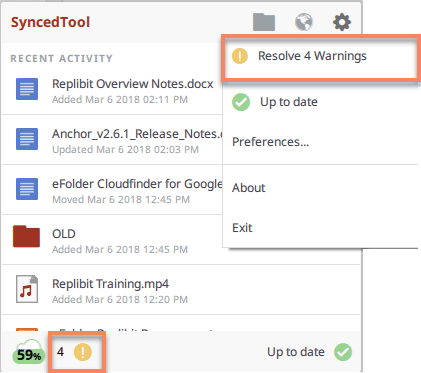
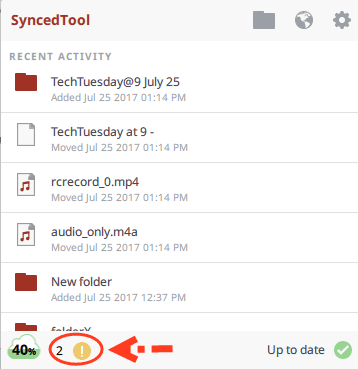
    1. When an issue occurs, you will see a Resolve Sync Warning icon over the following (your icon may look like a rocket):

    2. Click the icon on your computer’s system tray or menu bar, and select the Sync Warnings icon.Note: On a Windows machine, the icon is located in the lower right-hand corner of the screen; on a Mac machine, the icon is located in the upper right-hand corner of the screen. The Preferences dialog box displays, showing the Warnings tab.
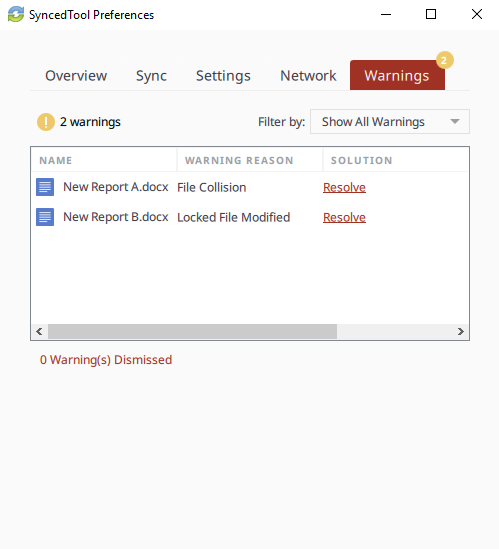
    3. Click the Resolve link to learn more about the warning, and what you can do to resolve the issue. For example, for file collisions:
      1. Click the Rename button to rename your copy to include the term collision appended to the end. When this option is selected, you will see two files: the original_file_name file and the original_file_name (collision) file.
      2. Click the Discard button to discard your copy without saving changes.
      3. If the “Allow Users to Overwrite Collisions” policy has been configured, you can also click the Overwrite Current button to sync your local copy as the current server version.
    syncedtool

    Types of File Sync Warnings and Resolution Options

    File Collision

    This file isn’t syncing because the local changes are conflicting with the cloud version. To resolve this issue, you can select from:
    • Rename – Rename the local file so the new changes sync to the cloud. This creates a new file.
    • Discard – Discard the new changes and sync down the cloud version. This option will send your recent local changes to the Recycle Bin.
    • Overview – Overwrite the cloud version with the new changes.
      Note: This option will only be visible if it the Allow users to overwrite collisions policy is enabled.


    Folder Exists Upstream (Folder collision)

    This folder isn’t syncing because a folder with the same name already exists in the cloud. To resolve this issue, you can select from:
    • Rename – Rename the local folder to begin syncing to the cloud. This creates a new folder.
    • Delete – Delete this folder and sync down the cloud version. After choosing Delete, users are prompted to confirm. Clicking the OK button will send your local folder to the Recycle Bin.


    Invalid Credentials for Synced Network Path

    There is a problem connecting to this folder. You can try updating your credentials to regain access. After clicking Enter Credentials, the user will be prompted to log in.


    File Is Locked

    The new changes won’t sync because the file has been locked. This error will resolve itself when the file is unlocked.


    Sync Root Folder Missing

    This folder isn’t syncing because it could not be found.

    This could happen due to one of two situations:

    • Folder was actually deleted or never created.
    • Not able to access the drive itself (for example, the folder is located on a flash drive or network share).

    To resolve this error, you can select from:

    • Unsubscribe – this option will unsubscribe the user from the Team Share.
    • Re-Sync – this option will re-sync this data from the cloud.


    Folder Permission

    You don’t have the right permissions to sync this folder. To resolve this warning, you can select from:
    • Dismiss – this option will hide the warning; the folder will not sync.


    Boost IT’s Cloud File Sync & Share software includes backup, sync, and remote access to files and can eliminate the need for VPNs and branch office file servers.  We have clients that use RocketSync now and it’s drastically reduced storage and maintenance costs and the time it takes to access your files.

    Source: Resolving a File Sync Warning

    How To File Sync & Share No Comments
    Boost IT

    Boost IT

    • Previous PostHow Are SMBs Using the Cloud in 2018? [CHART]

    • Next Post5 Time-Saving Tech Tips

    You May Also Like

    microsoft copilot New TechnologyCloudHow ToIT ManagementMicrosoft Microsoft Copilot Unleashes AI Productivity: Features and Benefits

    Microsoft Copilot Unleashes AI Productivity: Features and Benefits

    Boost IT
    Boost ITJuly 30, 2024
    Safe Browsing CybersecurityHow ToIT Management Tips for Safe Browsing on the Internet

    Tips for Safe Browsing on the Internet

    Boost IT
    Boost ITJanuary 30, 2024
    How to Check the Dark Web for Personal Information How ToCybersecurity How to Check the Dark Web for Your Personal Information?

    How to Check the Dark Web for Your Personal Information?

    Boost IT
    Boost ITDecember 30, 2023

    Solutions

    IT Management
    Cybersecurity
    Cloud
    Consulting
    Get Started

    Resources

    Blog
    FAQs
    Case Studies
    Testimonials
    Privacy Policy
    Book an Intro Call
    Client Portal Login

    Boost IT

    3365 Piedmont Road NE
    Suite 1400
    Atlanta, GA 30305
    (404) 865-1289

    Boost Logo white HQ mobile
    Share
    Share Share Share Pin

    © 2026 Boost IT. All Rights Reserved.

    Close Menu
    • SERVICES
      • IT MANAGEMENT
        • Take an IT Self-Assessment
        • IT Assessment
        • 24/7 Help Desk Support
        • Remote Workforce
        • Software Updates
        • Remote Server Monitoring
        • Reporting & Documentation
        • Wi-Fi
      • CYBERSECURITY
        • Take a Cybersecurity Self-Assessment
        • Cybersecurity Assessment
        • Compliance Services
        • Endpoint Detection & Response
        • Multi-Factor Authentication (MFA / 2FA)
        • Security Operations Center (SOC) Support
        • HeatShield Perimeter Firewall
      • IT CONSULTING
        • vCIO – Virtual CIO
      • CLOUD
        • Data Backup & Disaster Recovery
        • Microsoft 365
        • Cloud File Sharing Platform
        • Business Phone System
      • Frequently Asked Questions
    • OUR CLIENTS
      • Engineering Firms
      • Financial Services Firms
      • Healthcare Companies
      • Law Firms
      • Non-Profits
      • Real Estate Firms
      • Testimonials
      • Transition to Boost IT
    • OUR TEAM
      • One IT Question
      • Our Proven Process
      • Our Partners
    • BLOG
    • CONTACT
      • Book an Intro Call
      • Client Portal
      • Remote Support
    • Get Started